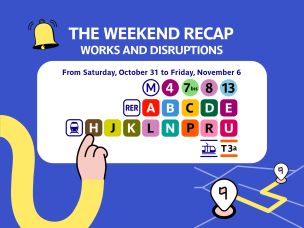
Traffic alerts: The service now covers disruptions affecting Transilien trains
New: Traffic alerts for disruptions on Transilien lines
C'est enfin disponible ! Vous pouvez dès maintenant être averti en temps réel et aux horaires de votre choix, en cas de perturbations inopinées ou programmées sur les lignes de Transiliens. Ce service disponible depuis quelques années déjà pour les lignes de métro, RER et tramways, intègre désormais toutes les lignes Transiliens.
Comment ça marche ? On vous dit tout dans cet article !
What is a traffic alert?
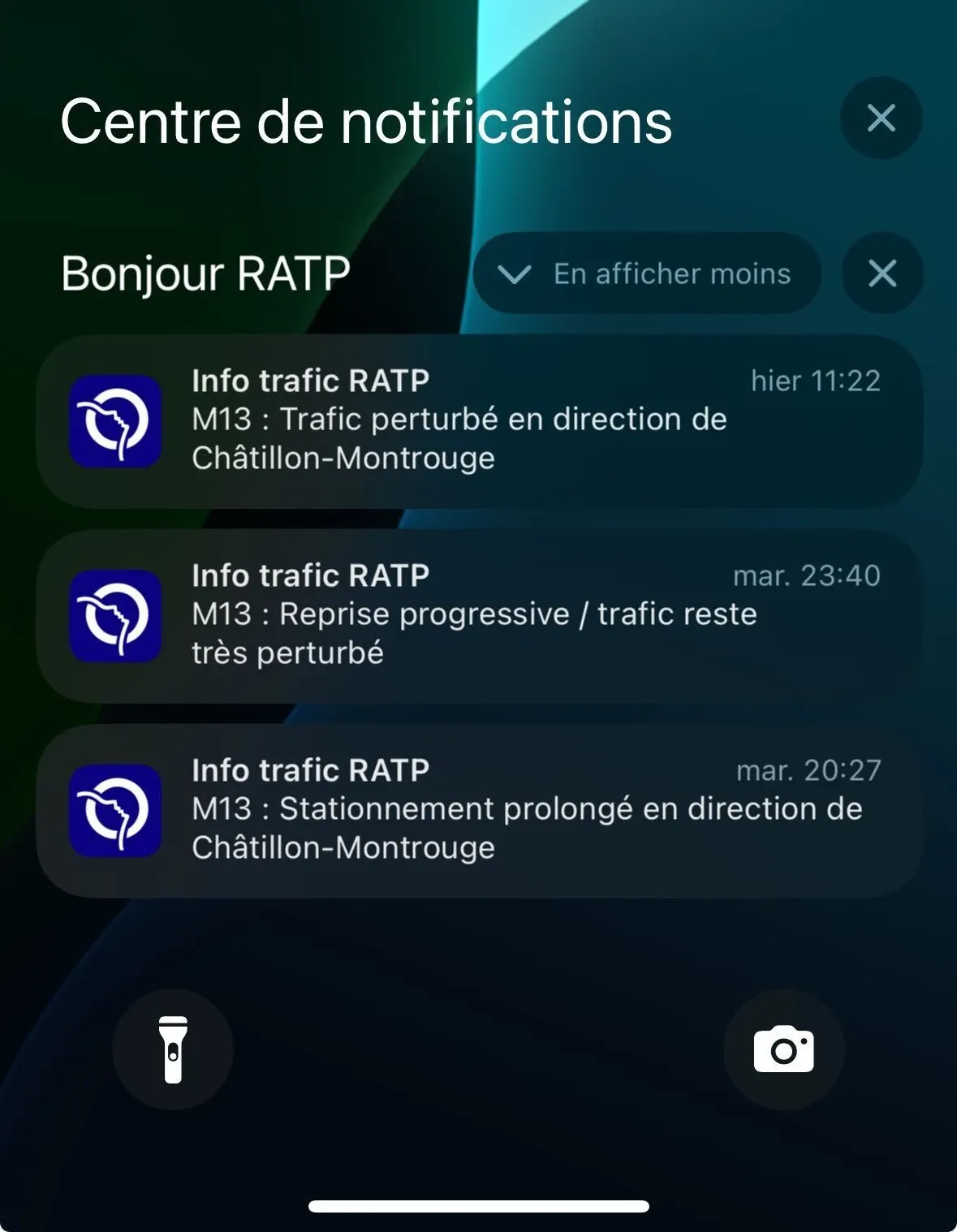
A traffic alert is a disruption notice that affects the status of a line's traffic.
The disruption may be planned—such as scheduled works organized by transport operators—or unexpected, like incidents occurring on a line.
To help you anticipate or avoid these disruptions, the Bonjour RATP team has launched a traffic alert service via mobile notifications. Thanks to these alerts, you will receive real-time information about any traffic disruptions that may impact a line’s operation, on the days and at the times of your choice. Depending on the severity of the disruption, you can then decide whether you want to find an alternative route.
The service is available for all metro, RER, and tramway lines—and, more recently, for all Transilien lines.
Enjoying these alerts is very simple. Just configure the alerts you want and, of course, accept to receive mobile notifications from Bonjour RATP. You can add, modify, or delete your alerts at any time.
How do I set up alerts?
It’s as easy as Bonjour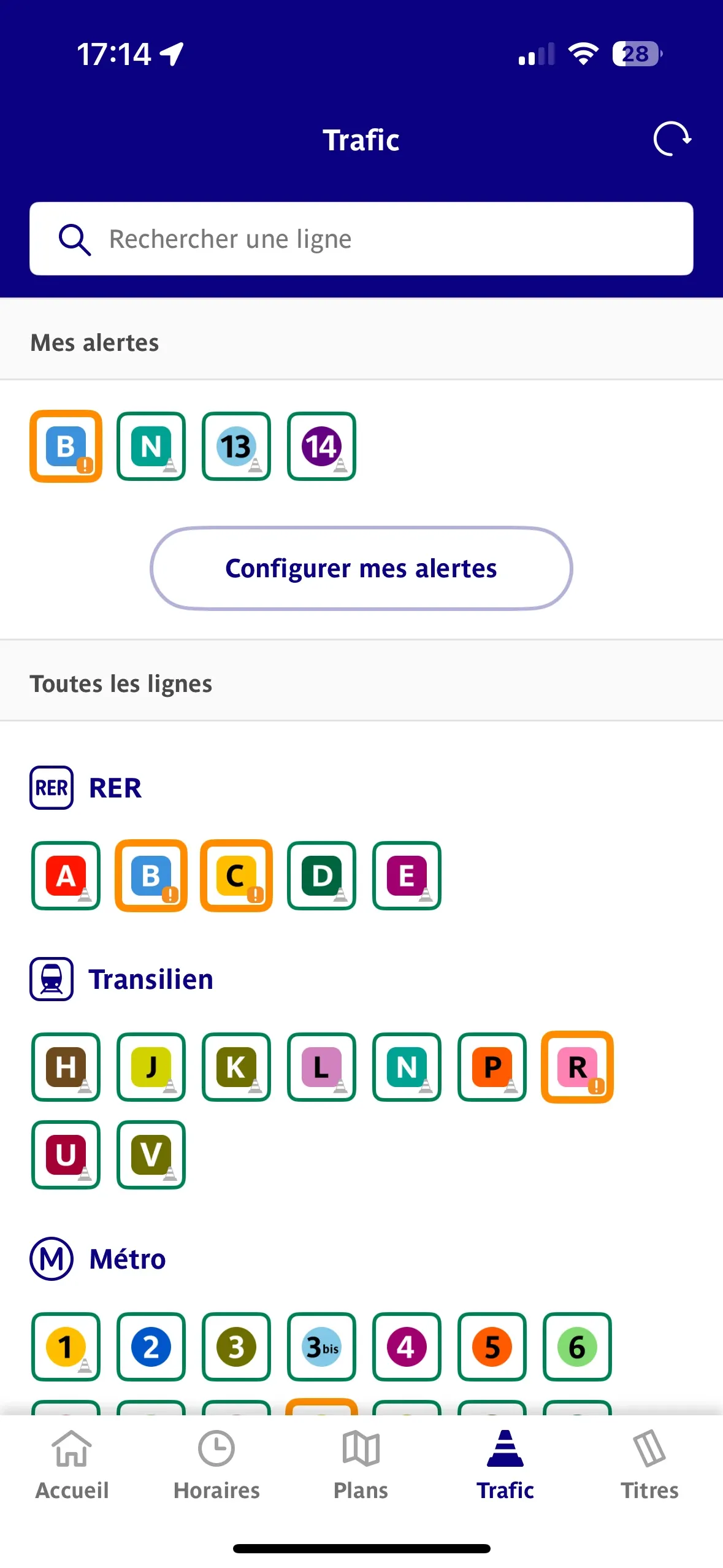
Select the lines on which you want to receive notifications
- Go to the Info Trafic section in the Bonjour RATP app;
- At the top of your screen, click on the "Set up my alerts" button;
- Then click on the "Add an alert" button;
- Select the line for which you want to receive real-time information and notifications, then select it by clicking on its name.
Set up the times when you want to be notified
- If you want to be notified about all traffic alerts, select "all the time" by checking the radio button.
- To set specific days of the week, choose the days you want to receive notifications. Selected days will appear in blue.
- To set the time slots during which you want real-time traffic updates, click on the time and scroll the wheel to your desired time. Click validate.
Validate your alert preferences
Once you have set the alert times, press the "Validate" button at the top right of the screen.
Edit or delete an alert
It's just as simple to edit or delete an alert:
- Click the "Set up my alerts" button from the Info Trafic section home screen;
- Tap the "..." on the right side of the line whose alert you want to edit or delete;
- Select the action you want to take: Edit or Delete.